
Pay, buy and save with swift, smart and effortless banking.
 or
or 
Introducing #Appbility 3.0, our Mobile App
Some of the benefits
Enhanced Security
The token provides an additional layer of protection, ensuring that transactions are safeguarded against unauthorised access.
Convenient and easy to use
Designed with simplicity in mind, the token makes authentication seamless and hassle free.
Improved customer experience
By reducing interruptions caused by failed OTP deliveries or connectivity issues, the token ensures smoother and more reliable transactions.
Multi-channel usage
The token can be used across multiple platforms, including the Mobile App and Internet Banking, giving customers the freedom to transact whenever they prefer.
.png)
What you can do
- Open a savings account
- Apply for a loan
- Make payments and send money
- Calculate and manage your loan repayments
- Invest
- Buy electricity, airtime, data and more
- Subscribe to cable TV
- Get financial help from loved ones with Raise Me
- You also get 24/7 Customer Support
- International money transfer
- Update info via Quick Services
- Send money faster with smart account suggestions
- Paste your OTP
- Locate a Stanbic IBTC branch, ATM, or agent
- Share transaction receipts via PDF or Image
- Purchase gift cards, eSims, and eVoucher directly on the Mobile App 3.0
-
What you can do
- Open a savings account
- Apply for a loan
- Make payments and send money
- Calculate and manage your loan repayments
- Invest
- Buy electricity, airtime, data and more
- Subscribe to cable TV
- Get financial help from loved ones with Raise Me
- You also get 24/7 Customer Support
- International money transfer
- Update info via Quick Services
- Send money faster with smart account suggestions
- Paste your OTP
- Locate a Stanbic IBTC branch, ATM, or agent
- Share transaction receipts via PDF or Image
- Purchase gift cards, eSims, and eVoucher directly on the Mobile App 3.0
Frequently asked questions about Appbility
-
Getting started
-
Transact
-
Payments & loans
-
Security
Can I log in using fingerprint or Face ID?
Yes, if your device supports it. For your security, we have implemented a process in which you log in once, with your username and password. After that, you will be able to log-in with your face or fingerprint ID just as before.
On the log-in page, enter your username and password and click on log-in. You will then be required to link your device using the OTP that will be sent to your phone number registered with us. Once you have done that, we will return you to the log-in page.
On the log-in page, toggle “Save username”, enter your username and password and click on log-in. You are now set for biometric logins again. Explore the app and whenever you log in again, the option to use your Face and Fingerprint ID will be available.
I forgot my password, what do I do?
Tap Forgot Password on the login screen. You can reset it using any of:
a. Your Mobile Banking Transaction PIN.
b. Your Debit card.
c. Your Secret word.
Follow the steps shown to reset or change your password.
How do I download the new Stanbic IBTC Mobile App 3.0 on my phone?
You can download the app from your device’s application store.
a. For Android, visit the Google Play Store.
b. For iPhone, go to the App Store.
Search for “Stanbic IBTC Mobile 3.0”, download, and install.
What devices are compatible with Stanbic IBTC Mobile 3.0?
The app is compatible with both android and iOS devices.
To enjoy a smooth experience:
a. Android phones must run on Android 9 or higher.
b. iPhones must have iOS 15.6 or above.
Can I log in on more than one device?
|
You can only use one device at a time. To switch to a new phone: a. Log in to the new device with your username and password. b. An OTP will be sent to your registered number with the Bank. c. Enter the OTP to link the new device. d. Repeat this same process anytime you switch devices. |
I want to register on Stanbic IBTC Mobile 3.0; how do I start?
|
There are two ways to register, depending on if you have a Stanbic IBTC account: 1. If you don’t have an account: a. Download the app and select ‘My Bank’. b. Tap Create Instant Account / Profile. c. Choose Open an Account. d. Enter your BVN and an OTP will be sent to your registered phone number with the Bank. e. Provide your signature and complete your biodata. f. Choose a username and password and submit request. 2. If you already have an account: Open the app and choose My Bank. Tap Create Account or Profile: a. Launch the Mobile App and select My Bank. b. Tap on Create Account or Profile. c. Choose Create Profile > Select Individual. d. Complete the form to securely access your account on the app. e. During this quick setup, you will create your login credentials to safely bank from your phone or computer. |
Can I use my old app login details on Stanbic IBTC Mobile 3.0?
Yes! Simply use your existing username and password to log into My Bank on the new app.
Can I pay bills on the Stanbic IBTC Mobile 3.0?
Yes, you can pay bills and utilities directly from the app.
a. Simply log in to the app.
b. Select Payments > Pay Bills.
c. Choose the biller (e.g., electricity, internet, DSTV).
d. Provide the transaction details and complete transaction with your transaction PIN or OTP or Token.
Can I make payments using a QR Code?
Yes! At any merchant with a NIBSS QR Code, simply:
a. Log in to the app.
b. Go to Payments > Pay with QR Code.
c. Scan the code.
d. Enter transaction details and authorize the payment with PIN or token or OTP.
Can I check my transaction history on Stanbic IBTC Mobile 3.0?
Absolutely. Log in, tap the account you want to view, then select Transaction history, then choose any of the options below:
a. Debit history (withdrawals).
b. Credit history (deposits).
c. Or all transactions for both
How can I quickly search for a previously done funds transfer?
If you have a need to refer to a previously done funds transfer, here are simples steps you can take to see it quicker:
a. Log in to the app.
b. Go to Transfer > Recent Transfer.
c. Select the filter icon.
d. Choose from the following options to narrow your search:
· Source Account Number
· Destination Account Number
· Date Range
· Transaction Amount
· Transfer to other Banks.
e. Select Apply Filter.
f. After you identify the transaction, you can do the following:
· Repeat transfers
· Add beneficiaries
· Schedule payment – to set up recurring payments
· Share receipt
· Report an Issue.
Can I apply for a loan on Stanbic IBTC Mobile 3.0?
Yes, if you are eligible.
a. Log in to the app.
b. If you qualify, you will see a loan offer under Loans and Offers.
c. Select Access your loan and follow the prompts.
For information on eligibility, you can reach out to the Stanbic IBTC Customer Contact Centre (CCC) on 0700 909 9099 or send an email to [email protected].
Can I set up recurring transfers or scheduled payments?
|
Yes, you can set up a recurring transfer on the app. a. After any domestic transfer, select Schedule Payment. b. Or go to Transfers > Scheduled Payments > Schedule a payment. c. Select Transaction Type · Schedule to a beneficiary · Schedule to self · Schedule to Stanbic IBTC Account · Schedule to other banks d. Select Source account, enter amount and destination account number. e. Select frequency, number or payments and Schedule start date. f. Complete your transaction using PIN or OTP or Token. |
Can I download my account statement from Stanbic IBTC Mobile 3.0?
You can request your bank account statement on the app:
a. Log in to the app.
b. Choose the account tab you want to obtain a statement for.
c. Select a date range.
d. Sort by ascending or descending.
e. Choose format (PDF or CSV) and submit.
f. The requested statement will be sent to your registered email with the Bank.
How do I request a debit card from Stanbic Mobile 3.0?
You can request easily with these steps below:
a. Log in to My Bank.
b. Go to More > Card Management > Request Debit Card.
c. Fill in the details and submit requests.
Visit the selected branch to pick up your card.
I lost my card; how do I block my debit card?
- Log in to the army
- Tap More > Card Management > Block Card.
- Select the card, provide a reason, and block.
- You can also call 0700 909 9099 or email [email protected]
Can I use the app when I’m abroad?
Yes, if you have internet access. However, some features (e.g. OTP delivery via SMS) may be limited due to local regulations.
How can I obtain a receipt for a transaction on Stanbic IBTC Mobile 3.0?
|
You can obtain a receipt for your funds transfer transaction on the app. The following options are available. 1. After a successful fund transfer. a. On the notification page after a successful funds transfer b. Select Generate Receipt Icon and tap on Share receipt. OR 2. Receipt generation for previous fund transfers a. Log in to the app. b. Tap on the account you want to generate a receipt. c. Select Generate receipt. d. Tap on the transaction and select Share receipt, |
How do I retrieve my card PIN if I forget it?
a. Log in to the app.
b. Tap More > Cards Management > Request Debit Card PIN.
c. Enter the last 4 digits of your card.
d. Select the account and tap Retrieve PIN.
Can I increase my daily transfer limit on the Stanbic IBTC Mobile 3.0?
Yes, you can increase your limit on the app to N5 Million.
a. Log in to the app.
b. Tap on More > Account Management.
c. Choose Manage Transaction Limit.
d. Adjust your daily, interbank, mobile, or internet channel limits.
In addition, you can increase your limit to N25 Million at any of our branches.
Can I send money to multiple people at once?
|
Yes, you can send money to multiple saved beneficiaries at a time. Firstly, you will be required to save a customer as a beneficiary. To do this simply follow the steps below: a. Go to Transfer. b. Select Manage Beneficiaries > Add Beneficiary. c. Enter Beneficiary Nickname. d. Enter beneficiary Account Number. e. Beneficiary Bank automatically populates in a drop-down. f. Tap on Add beneficiary. g. Complete your transaction using PIN or OTP or Token.
Following which you will be able to send money to multiple people following the simple steps below:
h. Log in and select Transfer > Domestic Transfers. i. Select source account > To Multiple Beneficiaries. j. Tick the checkbox of the beneficiaries you want to send money to and tap on Complete transfer. k. Provide amount and narration and review transaction summary. l. Provide transaction details and complete your transaction using PIN or OTP or Token. |
What should I do if a transaction fails?
|
We do not envisage a failed transaction on the app. However, if this happens, the following are options would apply. a. Usually, the app auto-reverses funds instantly. b. If not, wait 24 hours, it should reverse automatically. c. If after 24 hours it’s not resolved, do any of the following: · In-app: Go to Profile > Send message to support > Create a case and submit a complaint Call 0700 909 9099 or email our customer contact center on [email protected]. |
What should I do if I notice suspicious activity on my account?
a. Use the app to freeze your account:
• Log in to the app, tap More > Account Management > Freeze Account.
• Select the account to freeze and complete your transaction using a PIN or OTP or Token.
b. You can also call 0700 909 9099 or email our customer contact center on [email protected].
c. Alternatively visit any of our branches to report an issue.
I froze my account. How do I unfreeze it?
|
You can unfreeze easily with the steps below: a. Log into the app. b. Go to Account Management > Unfreeze Account. c. Select the account and unfreeze it. d. Complete your transaction using PIN or OTP or Token. |
I lost my phone; how do I deactivate the app?
|
• If you have USSD access, simply dial *909*1*911# and follow the prompt to block account access · Or Call 0700 909 9099 or email our customer contact center on [email protected]. |
How-to videos
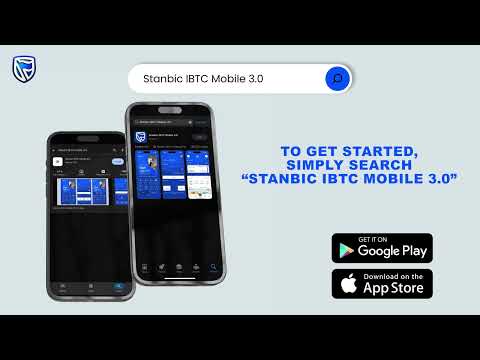
Stanbic IBTC Mobile App 3.0 | First-time login
New to the Stanbic IBTC Mobile App 3.0? Let’s get you in!
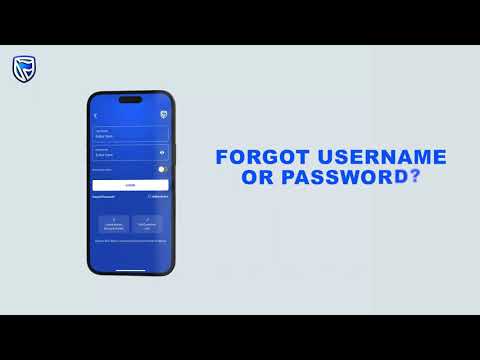
Stanbic IBTC Mobile App 3.0 | Reset your password
Forgot your password? Don’t sweat it; we’ve got you!

Stanbic IBTC Mobile App 3.0 | Pay bills effortlessly
Pay your bills with a few taps using the Stanbic IBTC Mobile App 3.0!

Stanbic IBTC Mobile App 3.0 | Generate statement of account
Here's how to generate your statement of account on the Mobile App 3.0.
We also offer

USSD Banking - *909#
Dial *909# on any phone to buy airtime and data, transfer funds, buy electricity token, pay for cable TV subscriptions and open a zero account. For instant account opening dial *909*37#.

EZ Cash Loan
Some needs can’t wait. Apply for an instant loan from the comfort of your home. Get a personal loan of up to ₦10 million and up to 24 months to repay.

Salary advance
Salary Advance is a short-term loan available to salaried customer for a maximum period of 30 days or until the next salary pay date, whichever comes first.

Plusrewards
Shop and pay for less with your Stanbic IBTC Card. Exclusive offers and discounts are available at participating merchant stores.
USSD Banking - *909#
Dial *909# on any phone to buy airtime and data, transfer funds, buy electricity token, pay for cable TV subscriptions and open a zero account. For instant account opening dial *909*37#.